
Handy tools: the bill, history, templates, and display settings
Besides the basics of making a draw, there are several features that save the organizer work. Open the section you need from the table of contents. History and templates are available while you are logged in.
When you log in, a menu appears at the bottom of the screen
While you are logged in, five menu items appear at the bottom of the screen.

- Groups: Gather members and create the draw for each session. The "Running a group" page explains this in detail.
- History: Reopen or duplicate the draws you have made so far.
- Create: Make a new draw.
- Calc: Use it to split the bill.
- My Page: Your member information, plus links to the draws you created and your templates.
When you are not logged in, four items appear: "Create," "Calc," "Guide," and "Log in."
For the bill, add up the total on the calculator and tap "Split" to split it
This is a calculator you can use to split court fees and ball costs. Open it from "Calc" in the bottom menu. On the draw screen, you can also open it from "Split Calculator" inside "Tools." To "split" means to divide the total amount among the people.
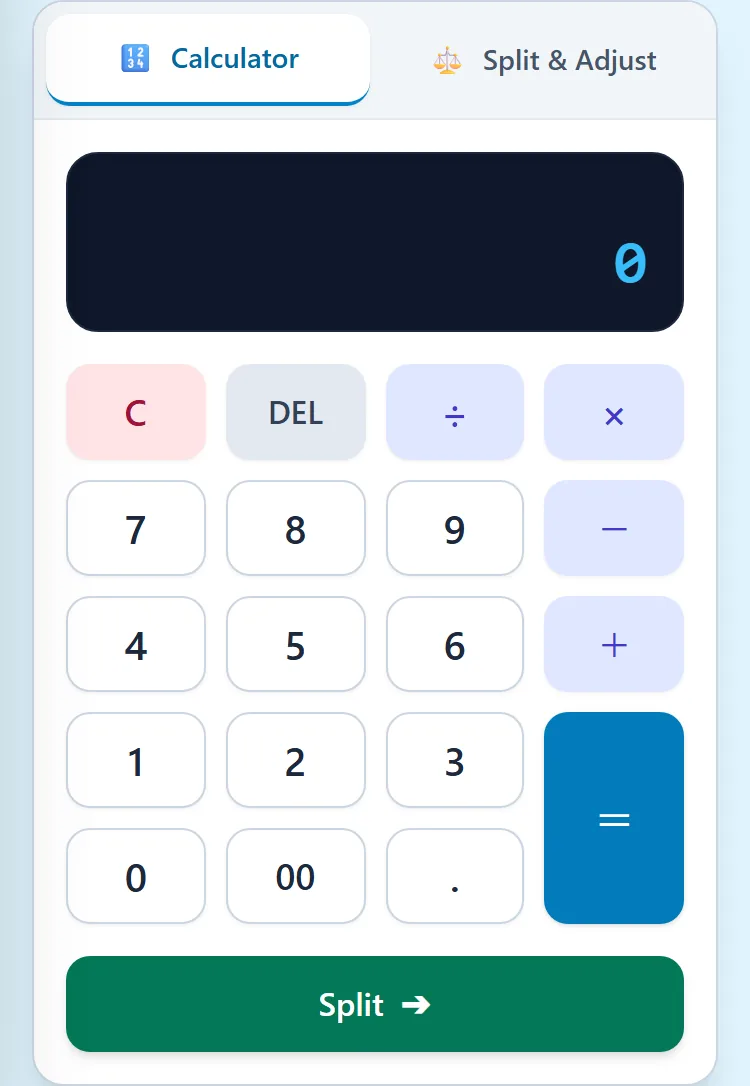
- On the "Calculator" tab, add up the court fee and ball cost to get the total.
- Tap "Split." The total goes into the next tab as the total amount.
- Enter the number of people in "Group A" and "Group B." For example, the group members and the visitors.
- Use "+" and "-" on each group to raise or lower the amount per person.
- At the bottom of the screen, check the total collected and the surplus.
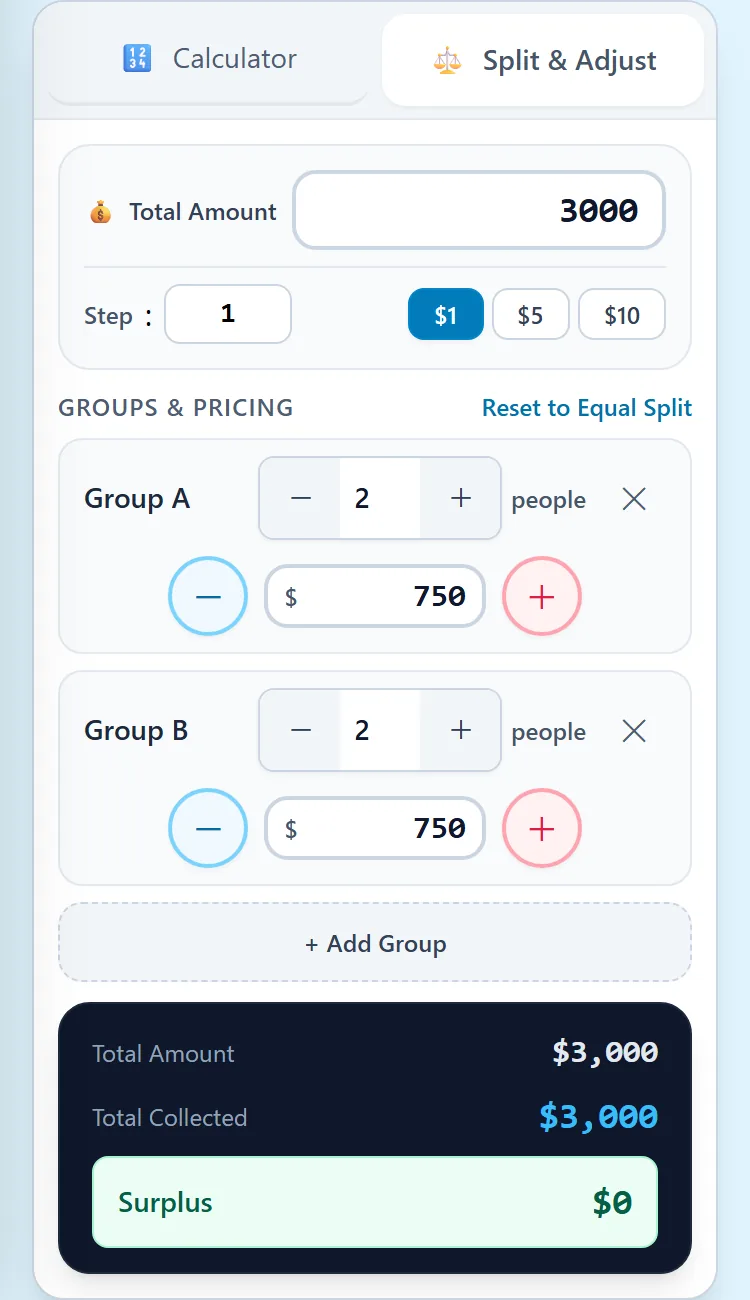
- Step: The amount that changes each time you tap "+" or "-." You can choose 100, 500, or 1,000 yen.
- Surplus: What is left after you subtract the total amount from the total collected. You can use it to have change ready, or put it toward the next ball cost.
- Add Group: With "+ Add Group," you can add a group later.
- Reset to Equal Split: Returns your adjustments to the same amount for everyone.
Draws you create stay in "History." You can reopen and duplicate them
In "History" in the bottom menu, you can see a list of the draws you have made so far. Draws that were shared with you are listed here too.
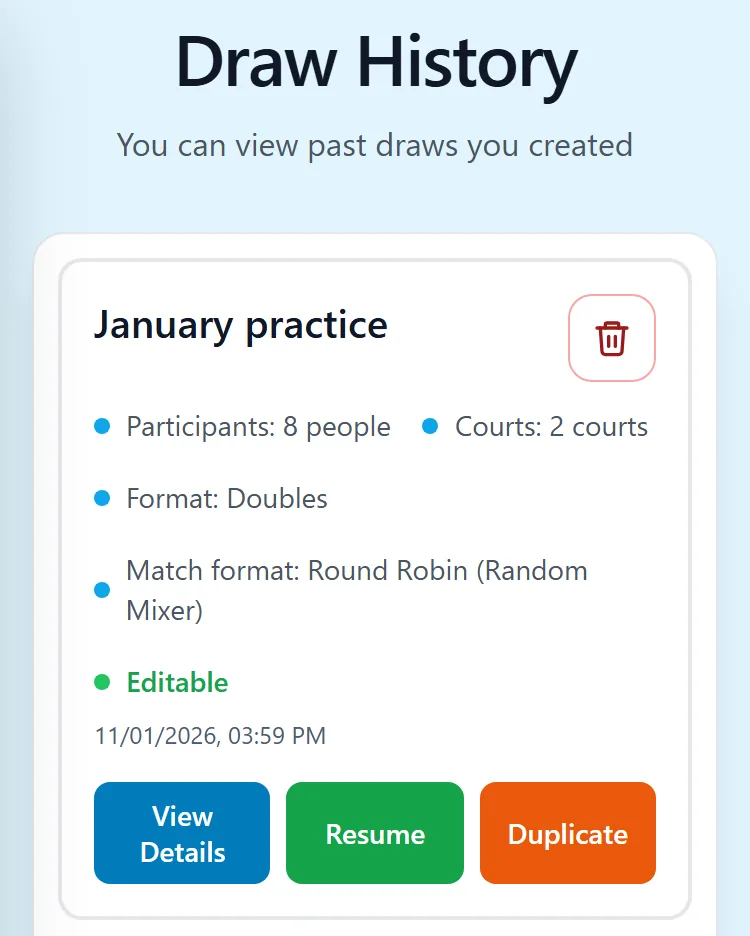
Each item shows the number of participants, the number of courts, and the format, as well as the match format (Round Robin, Mexicano, and so on).
- View Details: Opens the draw and results in a view-only screen. If you tap "Normal View (Editable)," you move to the usual draw screen.
- Resume: Continue entering on the usual draw screen. It appears only for draws you can edit.
- Duplicate: Makes a new draw with the same number of players, courts, and participants.
- Trash icon: Removes that draw from your own history. The draw itself is not deleted, so people who have the link and the group's event can still view it as before.
History keeps up to 50 draws, newest first. Older ones are removed automatically when you open the list. For a draw you want to keep, save its share URL, or open it from the group's event.
If you tap "Duplicate," the player settings screen opens with the participants' names already filled in. Set absent players to Rest or add new players, then tap "Create Draw" to get a new draw. This suits practice sessions where almost the same members gather every time.
The "View Only" badge in History marks a read-only draw that was shared with you. These draws do not show the "Resume" button.
Save the conditions you use often as a template
If you create draws with the same format and options every time, a template is handy. Open it from "Templates" in the quick menu on "My Page."
- On the "Template List" screen, tap "Create New."
- Choose the template name and doubles or singles. If needed, check the options too.
- Enter the players in the table below. "Add Player" adds more rows.
- Tap "Save."
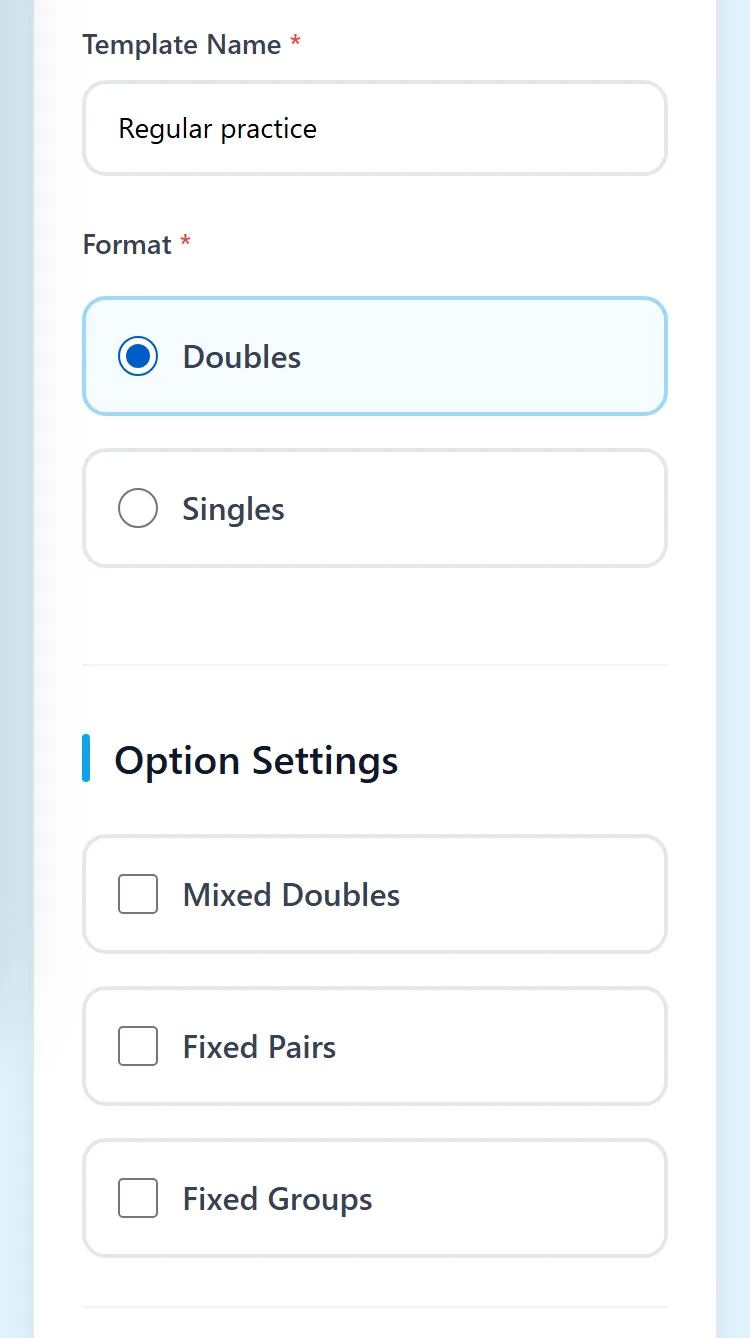
You use a saved template with "Create Draw" in the list. When you tap it, the player settings screen opens, so check the details and tap "Create Draw." From the list, you can also edit and delete templates.
Change the font size and theme with the palette button at the top of the screen
Tap the palette button at the top of the screen to open "Display Customization." Use it when the screen is hard to read, for example on an outdoor court.
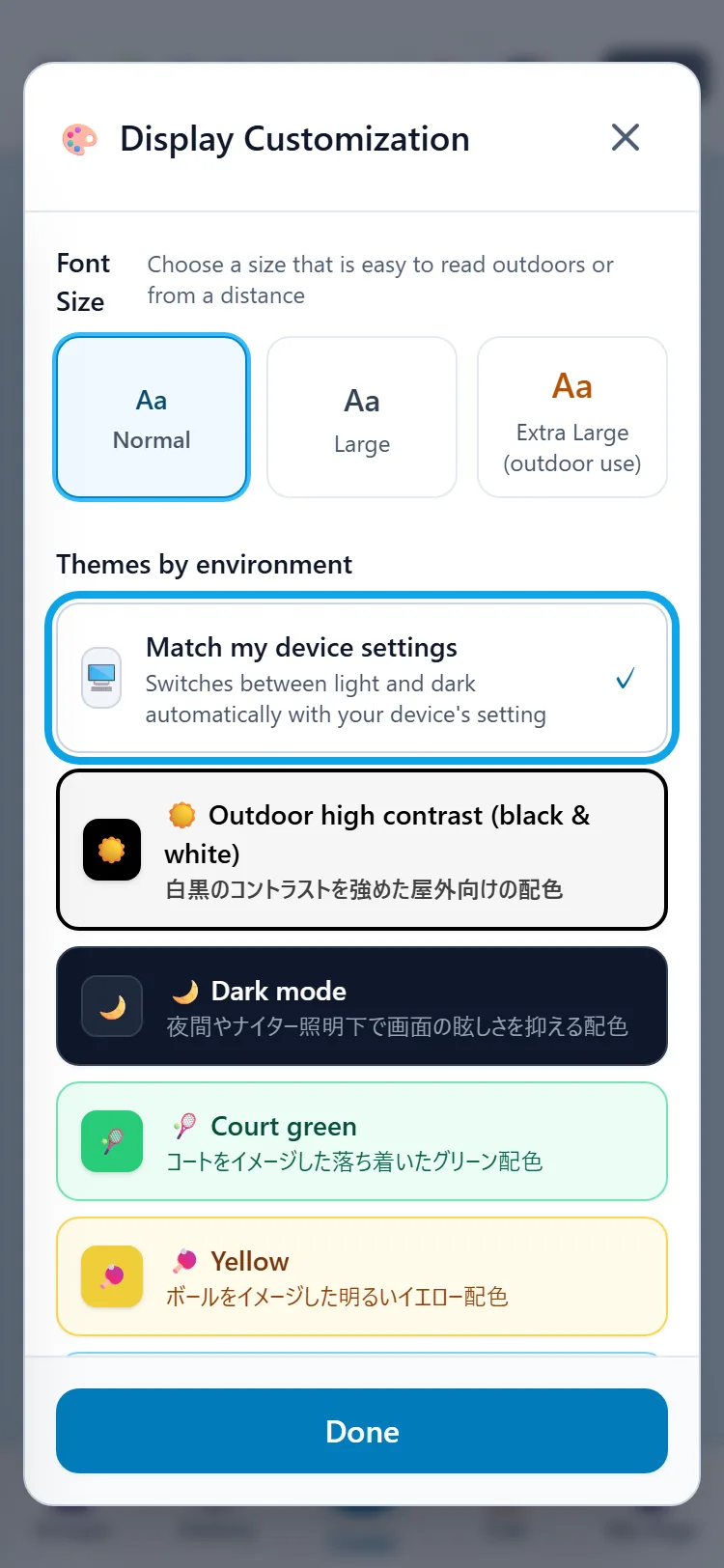
- Font size: Choose from Normal, Large, or Extra Large (outdoor use).
- Match my device settings: Switches between a light screen and a dark screen automatically, following your phone's setting.
- Outdoor high contrast: A clear black-and-white color scheme. It is easier to see on an outdoor court in strong sunlight.
- Dark mode, Court green, Yellow, Sky blue: Choose the color scheme you like. Sky blue is the default.
Further down, there is also a palette of 14 colors. When you are done choosing, tap "Done" to close it.
Switch the language with the flag button at the top
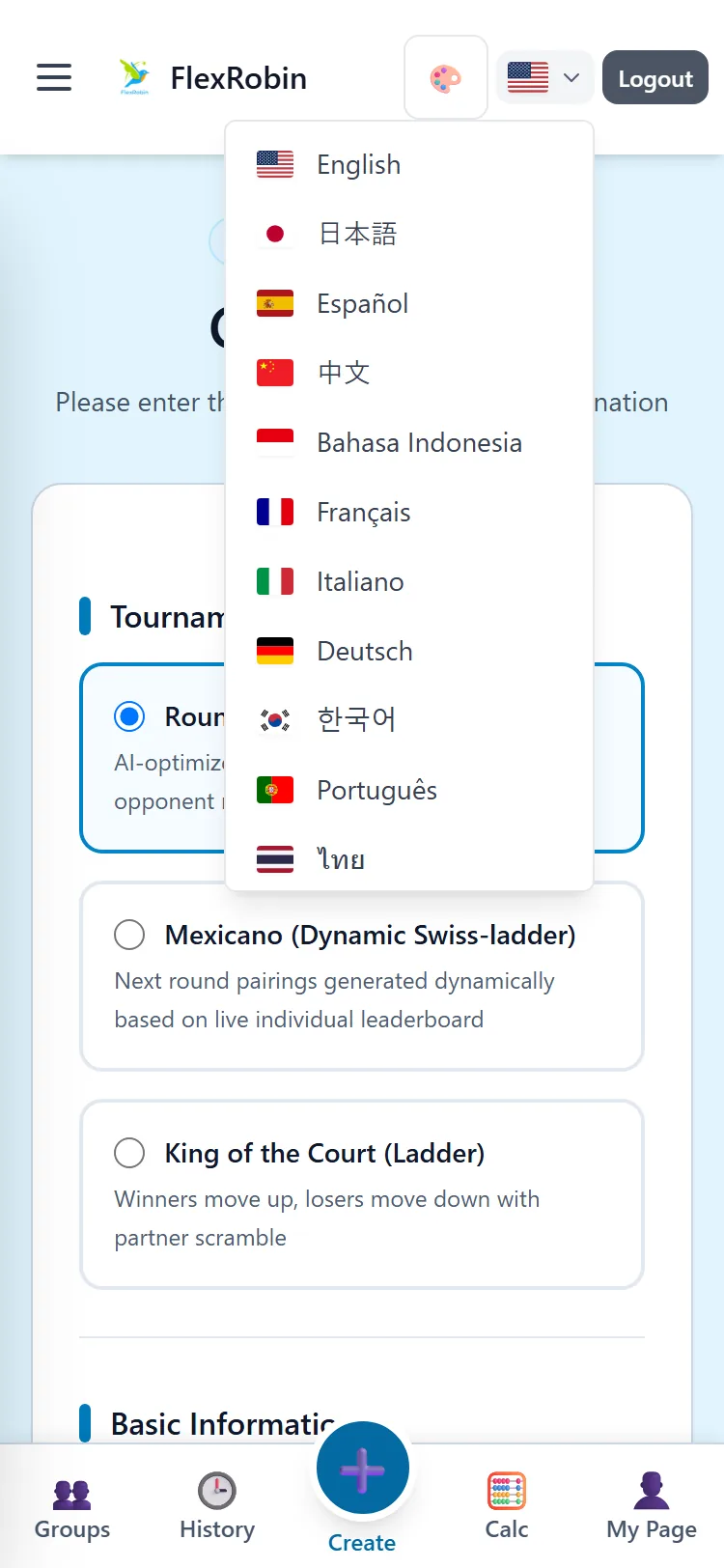
Tap the flag button at the top of the screen to see the list of languages. When you choose one, the text on the screen changes to that language.
Free, no sign-up, works in your browser
Read next
- Creating your first draw — From creating the draw to entering scores and checking results
- Running a group — Gather members and create the draw for each session
- FAQ — Quick answers when you are stuck