
Creating your first draw: from setup to results
This page is for first-time users. It explains how to create a draw and run the matches on the day. You can use it without signing up. Read it once from top to bottom to get the whole picture, then use the table of contents to come back to a section later. Handling late arrivals and early departures, and sharing, are covered on separate pages.
Create, share, enter scores, check results: just four steps
Making a draw takes four steps.
- Create: Choose the format, the number of players, and the number of courts, then tap "Create Draw." The draw is made.
- Share: Give participants a URL or QR code, and they can view the draw on their own phones.
- Enter scores: After each match, enter the score and mark it "Complete."
- Check results: Individual results and pair results are totaled automatically from the scores you entered.
All of this works without logging in. A draw you create without logging in can be edited in the browser of the device where you created it.
There are three formats. If unsure, choose Round Robin
At the top of the create screen, you choose the match format.
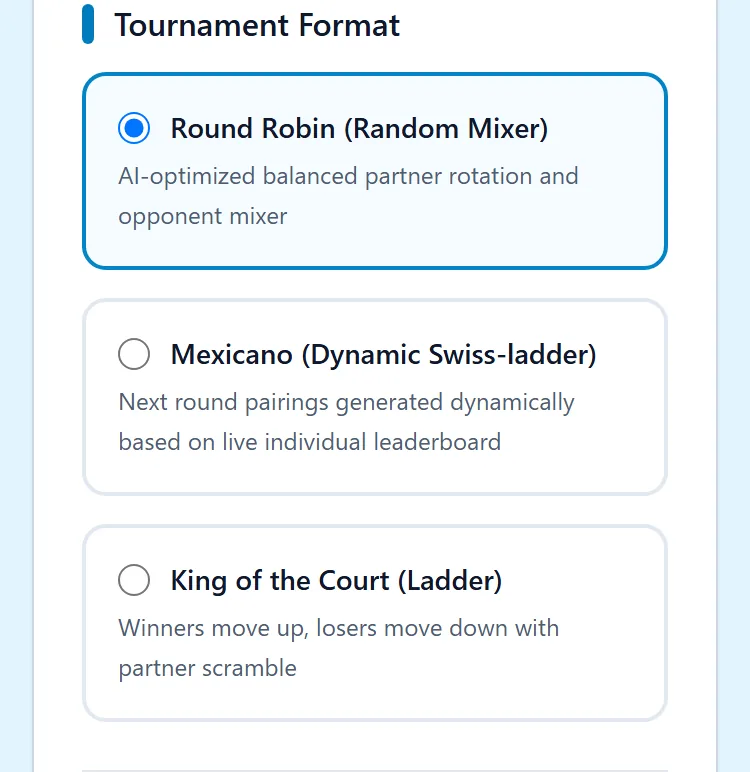
- Round Robin: The standard format, for when you want everyone to team up with and play against many different people. All the match combinations are decided as soon as you create the draw.
- Mexicano: Use this when you want players of similar strength to face each other. After each round, the next pairings are built from the current individual standings.
- King of the Court: Use this when you want courts to be swapped up and down by wins and losses. Winners move to a higher court, losers move to a lower court, and the pairs are reshuffled. You create it one round at a time.
In Mexicano and King of the Court, the pairs change every round, so you cannot choose "Fixed Pairs" or "Fixed Groups."
Choose the players and courts, then tap "Create Draw"
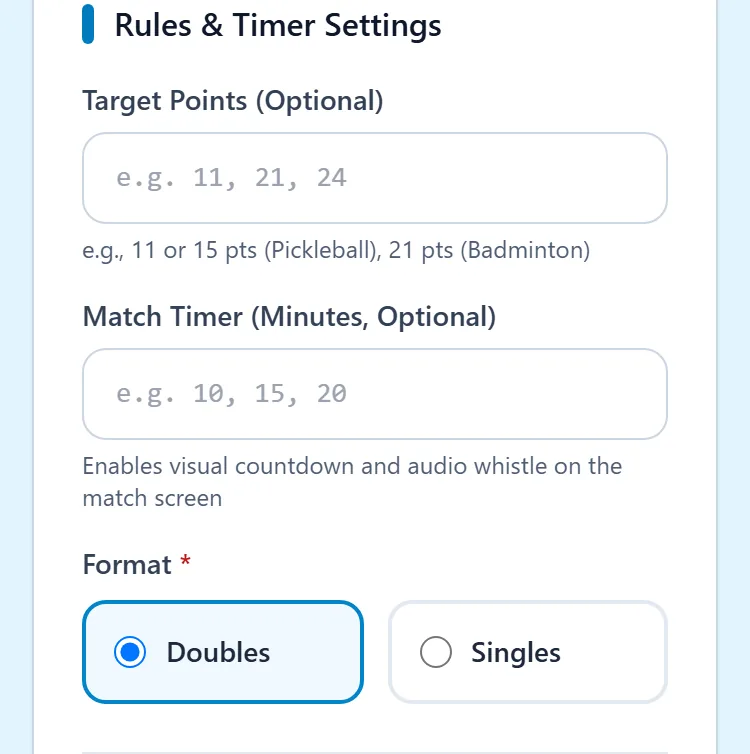
After choosing the format, fill in the basic items. Only three are required: the number of players, the number of courts, and doubles or singles.
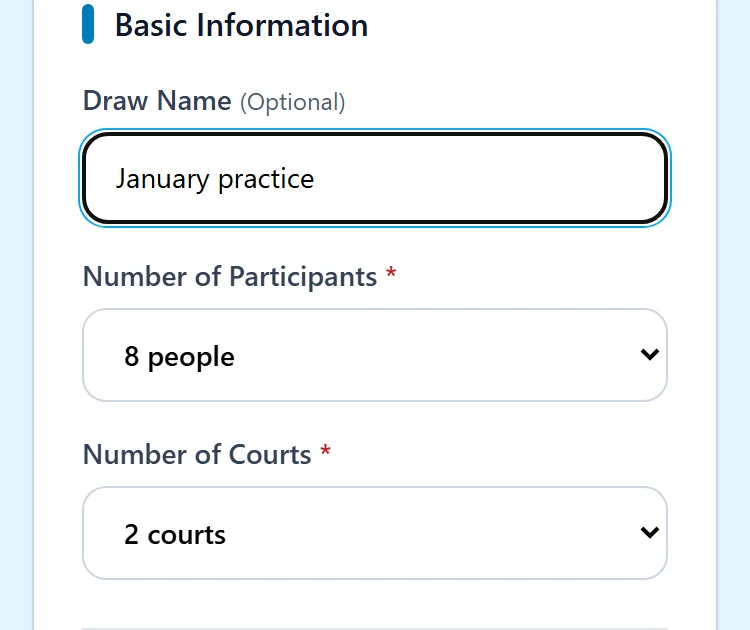
- Enter a draw name (optional). Use a name you can recognize later, such as "January practice session."
- Choose the number of participants (2 to 30) and the number of courts (1 to 8).
- Choose doubles or singles.
- Enter the target points and the match timer only if you need them. For the points, enter the winning score of your sport, such as 11 for pickleball or 21 for badminton. If you enter timer minutes, a countdown timer with a whistle appears on the draw screen.
- Tap "Create Draw" at the bottom of the screen.
If you do not need any of the options under "Option Settings" (Mixed Doubles, Fixed Pairs, Fixed Groups), you can simply create the draw as is.
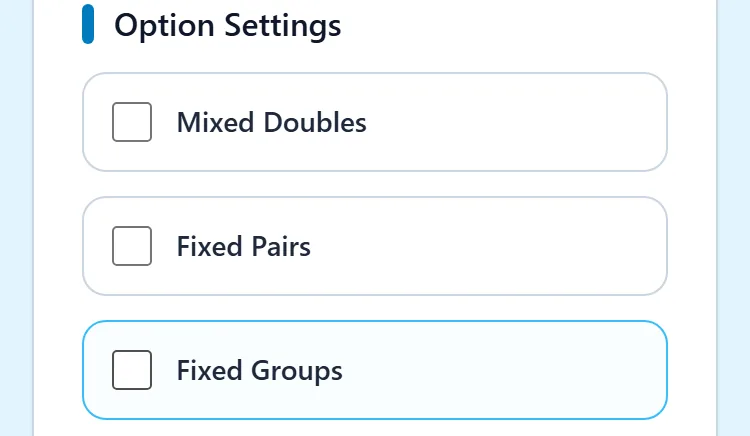
If you check even one option and create the draw, the player settings screen opens before the draw. There you set gender, groups, and the pairs to fix. If you check none, the draw appears right after you create it.
Player names start as numbers. You can add names afterward
Right after creation, the player names are just numbers: 1, 2, 3. To show names, tap "Edit Settings/Recalculate" on the draw screen to open the player settings screen, and enter the names.
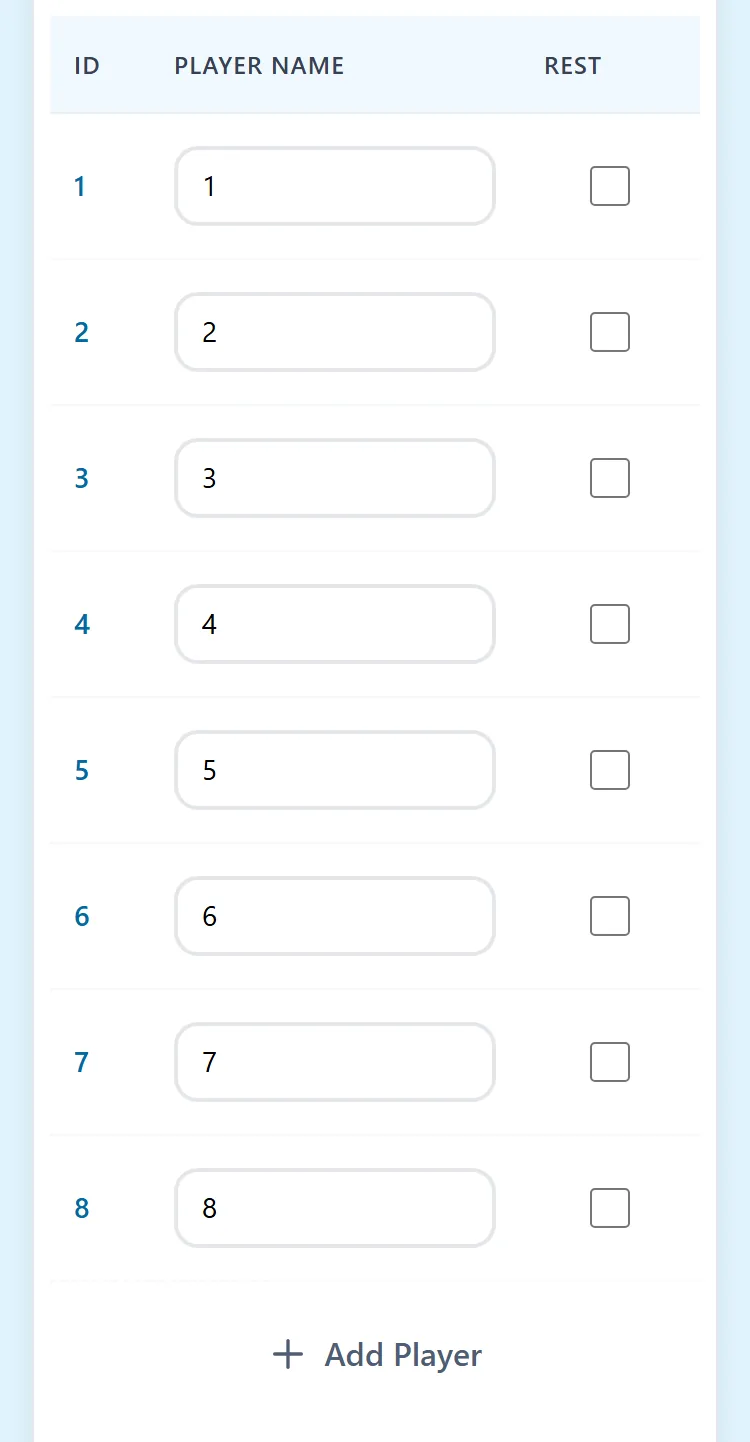
- On the draw screen, tap "Edit Settings/Recalculate."
- Enter a name for each player.
- Tap "Save Settings and Recalculate" at the bottom of the screen.
Saving a name change also recalculates the match combinations. It is safest to enter the names before the matches start. Recalculating after matches have started is explained on the "Changes during play" page.
The draw lists the matches for each court, one match round at a time
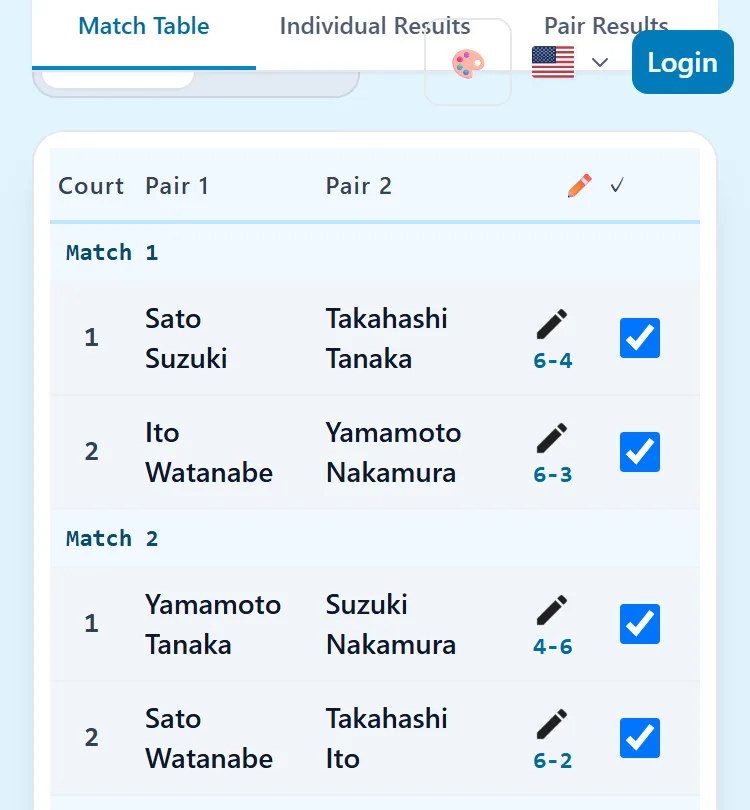
Once the draw is made, it appears on screen. It is divided into "Match 1," "Match 2," and so on, one per round, and each one lists the games on each court.
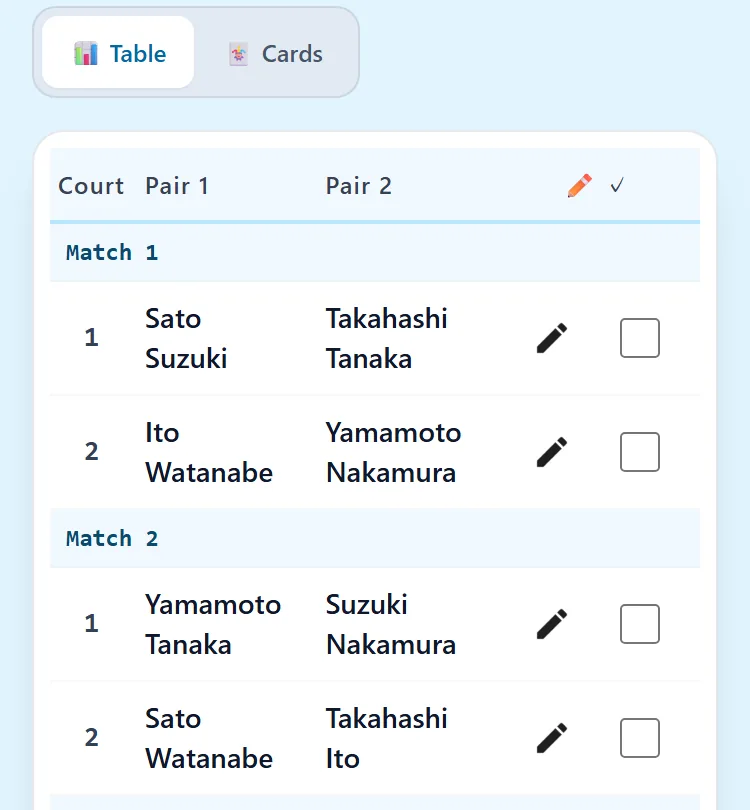
- Court: The number of the court used for that match.
- Pair 1 and Pair 2: The two pairs playing each other. In singles, each side shows one player.
- Pencil icon: Tap it to enter the score.
- Checkbox: Check it when the match is over.
The toggle above the draw switches between table view and card view. Card view is handy when you want to see one match at a time, large, on your phone.
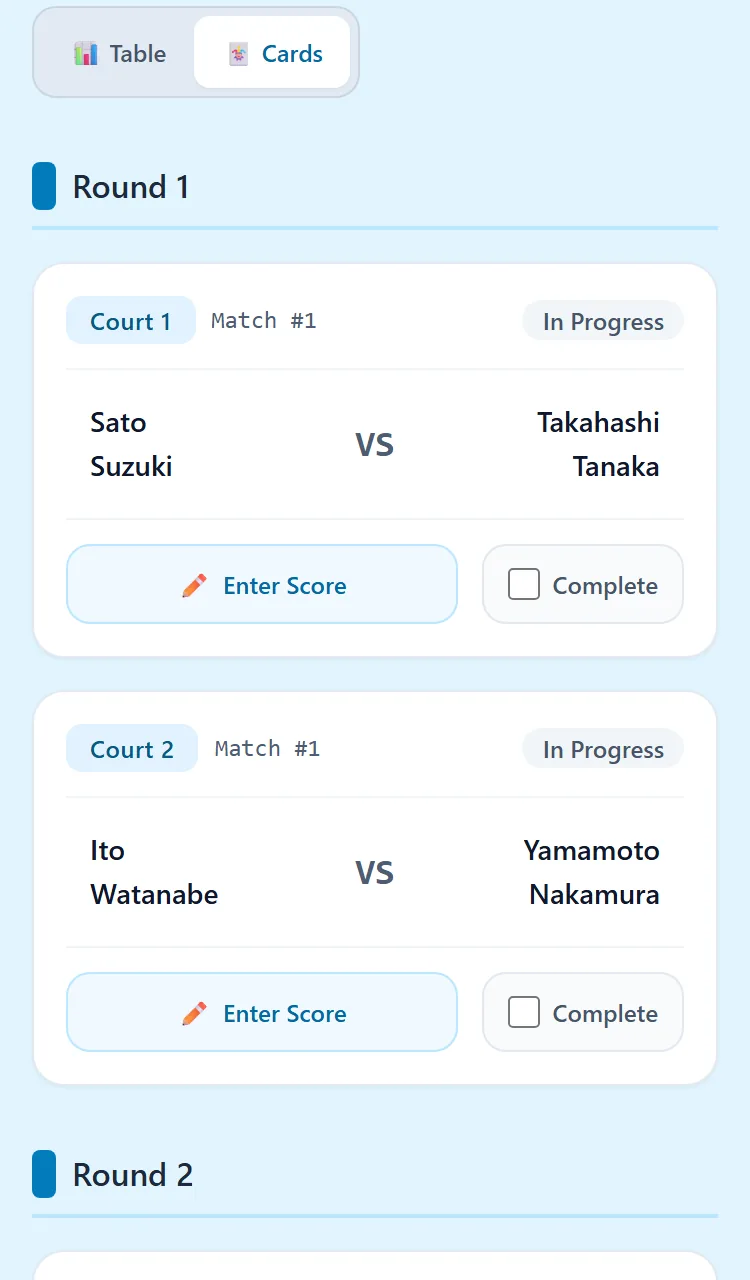
When a match ends, tap the pencil icon, enter the score, and mark it "Complete"
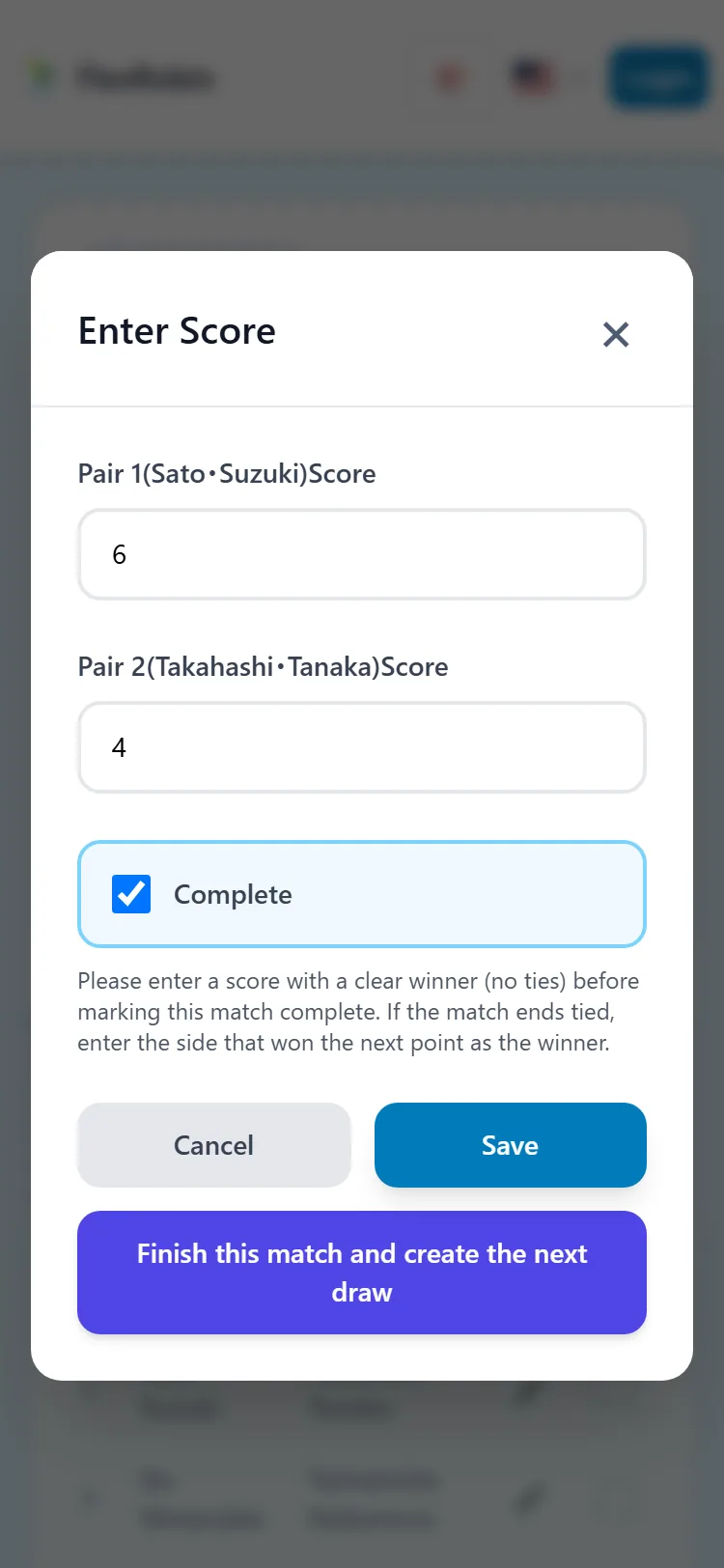
- Tap the pencil icon of the finished match.
- Enter the points for Pair 1 and Pair 2.
- If the match is over, check "Complete."
- Tap "Save."
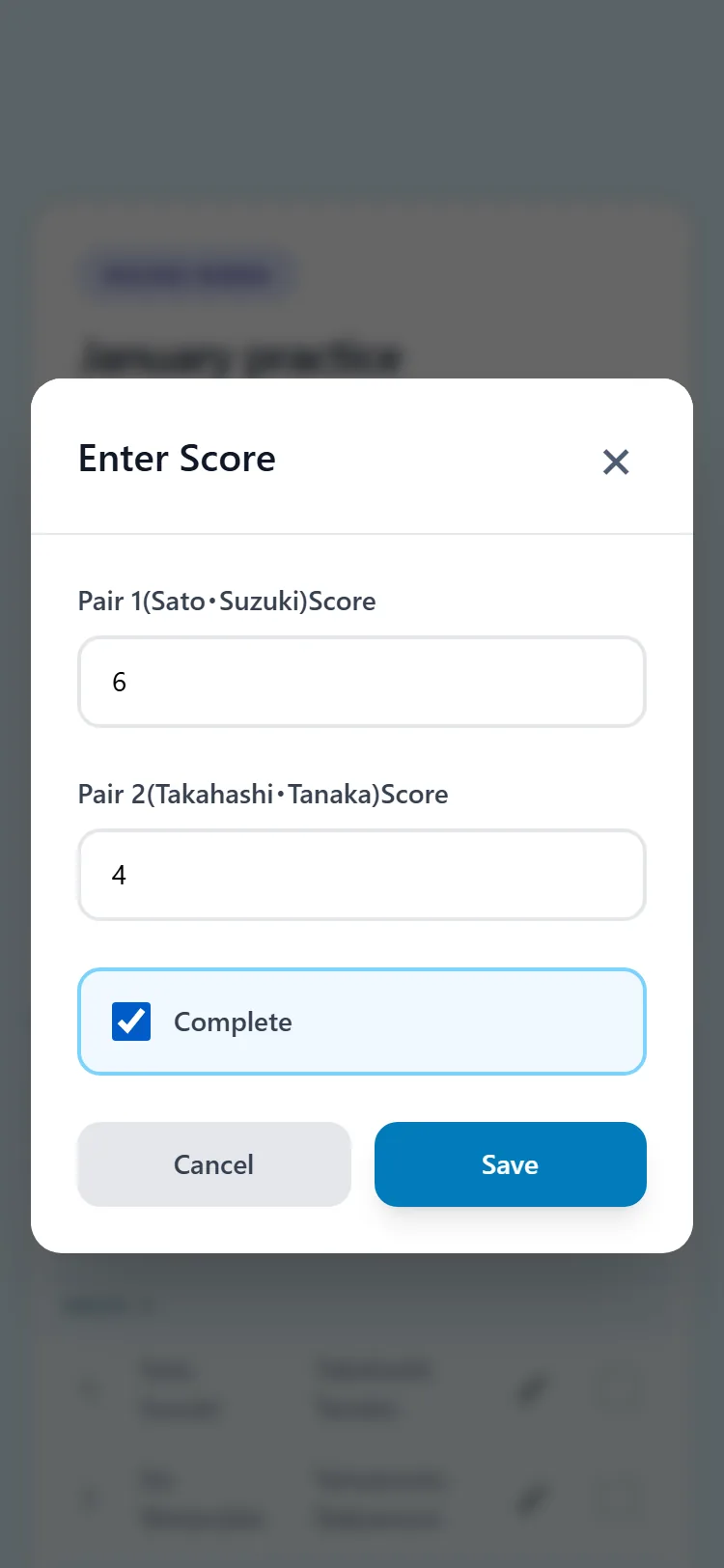
After you save, the score appears under the pencil icon in the draw. Matches marked complete turn gray.
Only people who can edit the draw can enter scores. If you open the draw with a view-only URL, the pencil icon does not appear.
In King of the Court, a match needs a score with a winner before you can mark it complete. A tie cannot be completed. If a match ends in a tie when time runs out, enter the side that scored the next point as the winner.
In Mexicano, you can complete a match even when it is tied. A tied match only counts the points scored, and it is neither a win nor a loss.
Results are totaled automatically from the scores you enter
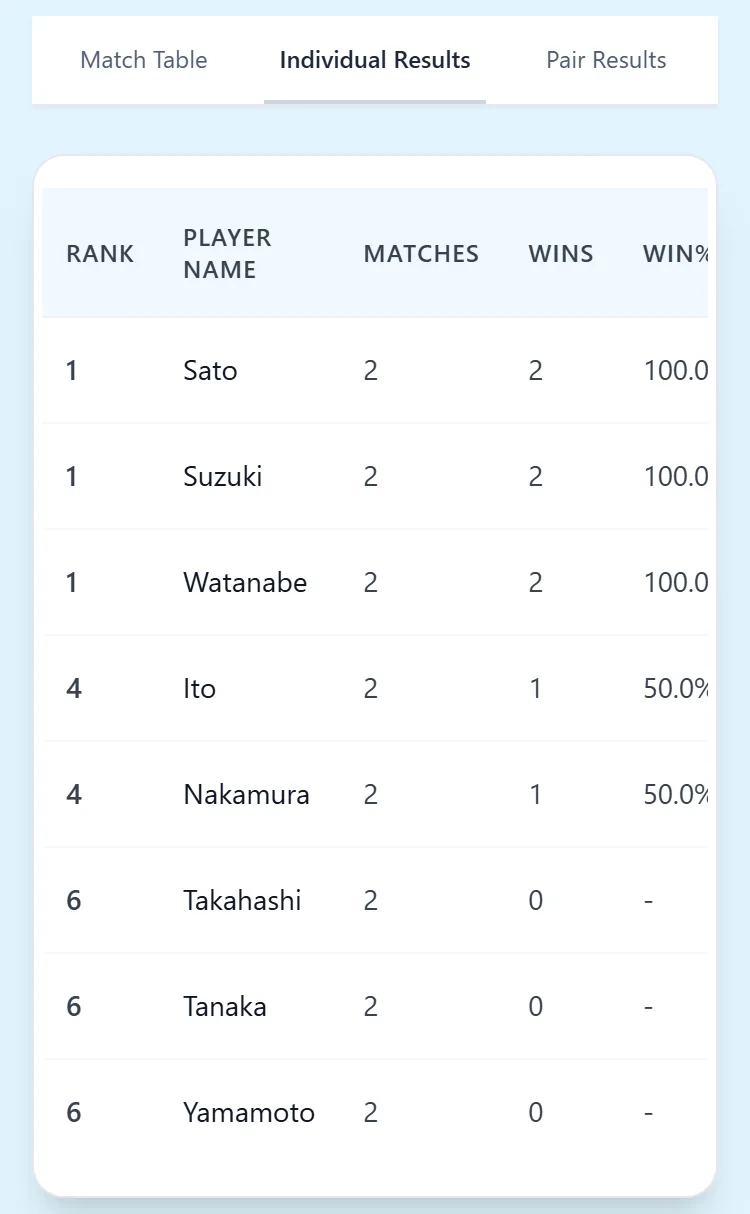
Use the tabs above the draw to switch between "Individual Results" and "Pair Results." They show rank, matches played, wins, and win rate. Pair results appear only in doubles.
In Mexicano and King of the Court, you create the next round after each round
In these two formats, only the first round exists when you create the draw. Each time a round ends, you create the next round from the results.
- Mark every match of that round "Complete."
- Tap "Generate Next Round" below the draw.
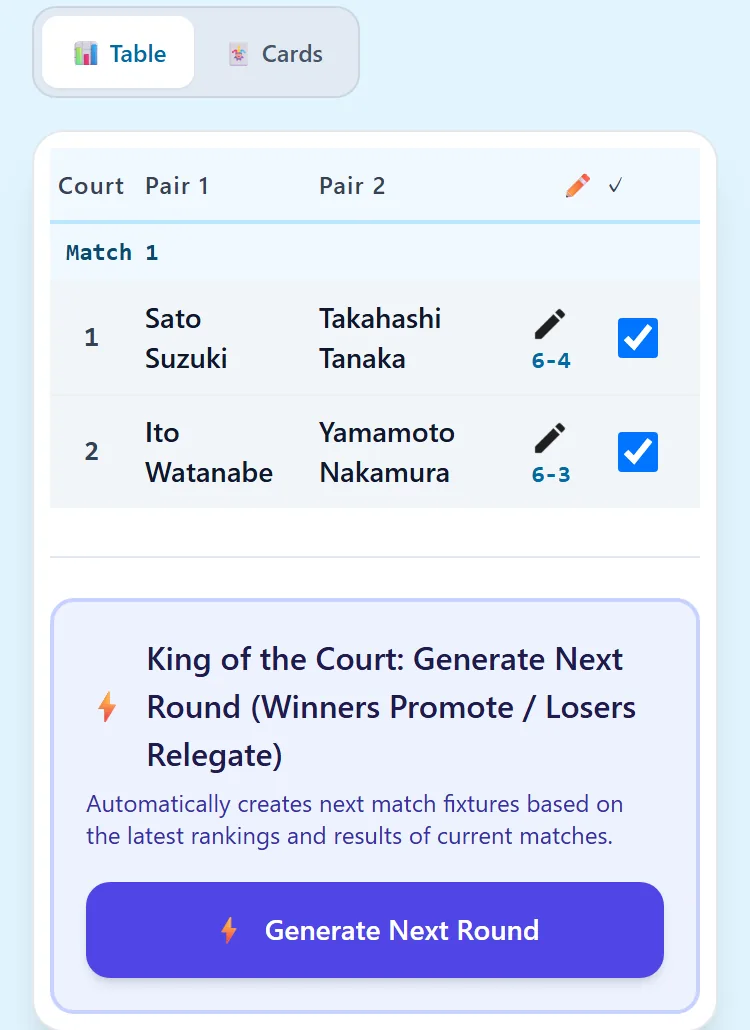
You cannot create the next round while any match is unfinished. Mexicano decides the next pairings from the latest individual standings, and King of the Court decides them from wins and losses.
For the latest round, you can also move forward with "Finish this match and create the next draw" on the score entry screen. This button, below Cancel and Save, marks that match complete, saves it, and creates the next round right away. If other matches are still unfinished, a confirmation appears.
On the day, the timer in "Tools" and "My Next Match" come in handy
Tap "Tools" above the draw to open three buttons.
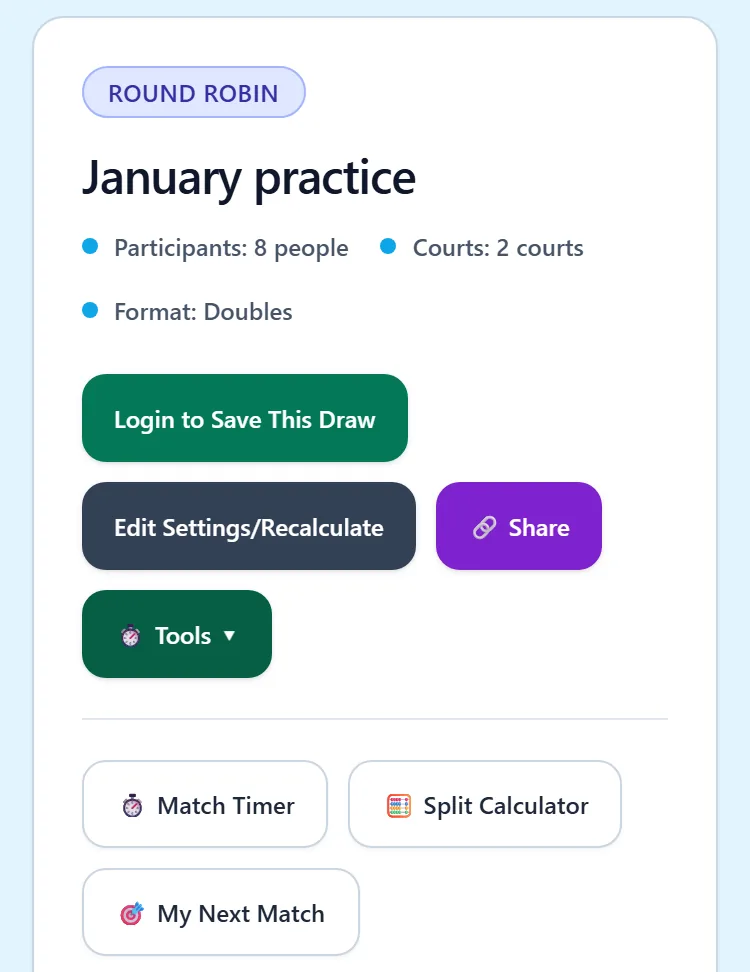
- Match Timer: Times your matches.
- Split Calculator: Splits costs such as court fees among the players. How to use it is explained on the "Handy tools" page.
- My Next Match: Choose your name to see your next match.
Free, no sign-up, works in your browser
Read next
- Sharing with everyone — Show the draw to participants with a URL and a QR code
- Changes during play (late, early departure, headcount) — What to do when the number of players changes on the day