
Sharing with everyone: when to use the URL and the QR code
Participants can view the draw on their phones just by receiving a URL. There are two kinds of URL, and you choose one depending on who you give it to. You can also share a draw you created without logging in.
Open sharing with the "Share" button on the draw
Tap the "Share" button at the top of the draw screen to open the share screen. Two URLs are listed.
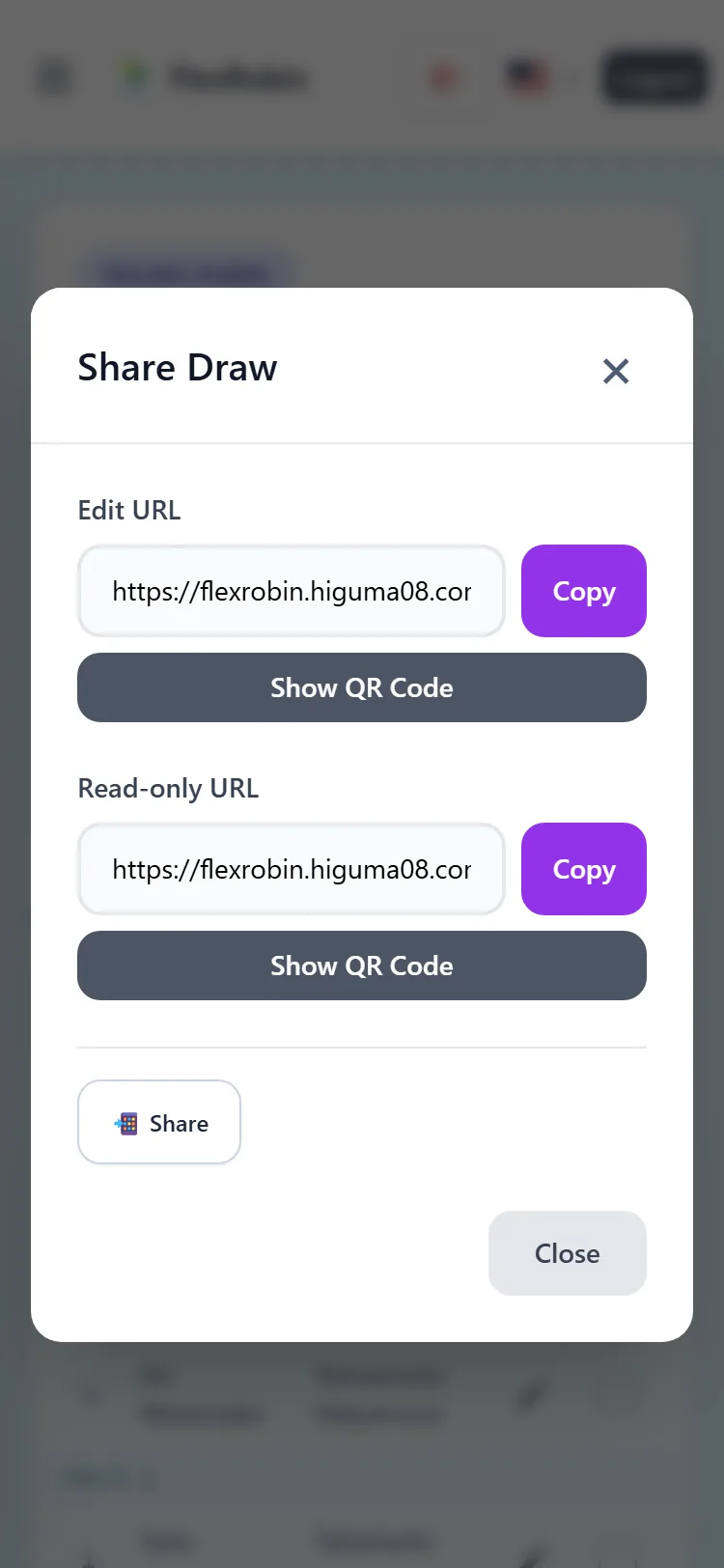
There are two URLs. Give the edit URL to people who will edit, and the read-only URL to people who only view
- Edit URL: If you open it while logged in, you can enter scores and change settings. If you open it without logging in, you see the read-only screen.
- Read-only URL: Opens the draw and results for viewing. You cannot enter scores or change settings.
Give the edit URL to the person running the event or keeping score, and the read-only URL to participants. That way, participants cannot change settings by mistake.
To pass it on, copy and paste the URL, or show the QR code
Tap "Copy" beside a URL to copy it. Paste it into a chat or an email to send it.
For people who are right there, the QR code is handy. Tap "Show QR Code" under the URL, and the QR code appears. When the other person scans it with their phone camera, the draw opens right away.
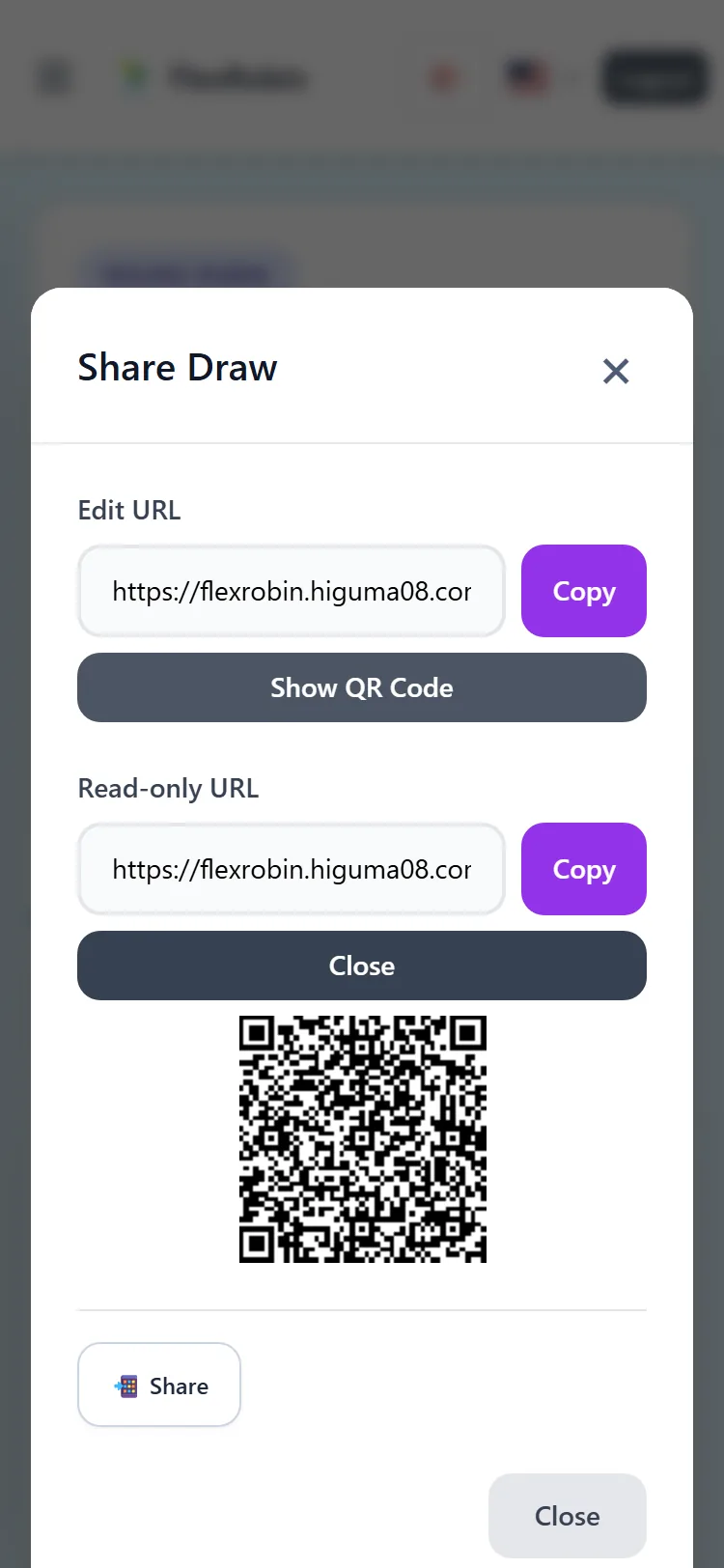
A shared URL is valid for 30 days from when it was issued. After that, it can no longer be opened. In that case, open the share screen again to get a new URL. People who logged in and opened it before it expired can still open it from their history afterward.
You can share a draw you created without logging in
Even for a draw created without logging in, you can issue both the Edit URL and the Read-only URL. The share screen opens the same way. However, if the person who opens the Edit URL is not logged in, they see the read-only screen.
A draw created without logging in can be edited only in the browser of the device where you created it. If you want to use it on another device, or keep it in your history, tap "Login to Save This Draw" above the draw.
What the recipient sees: with a read-only link, there is no pencil icon in the score column
A person who opens the read-only URL sees the draw and the results. The pencil icon for entering scores and the "Edit Settings/Recalculate" button do not appear. Only the scores that have already been entered are shown. The same screen appears if someone opens the Edit URL without logging in.
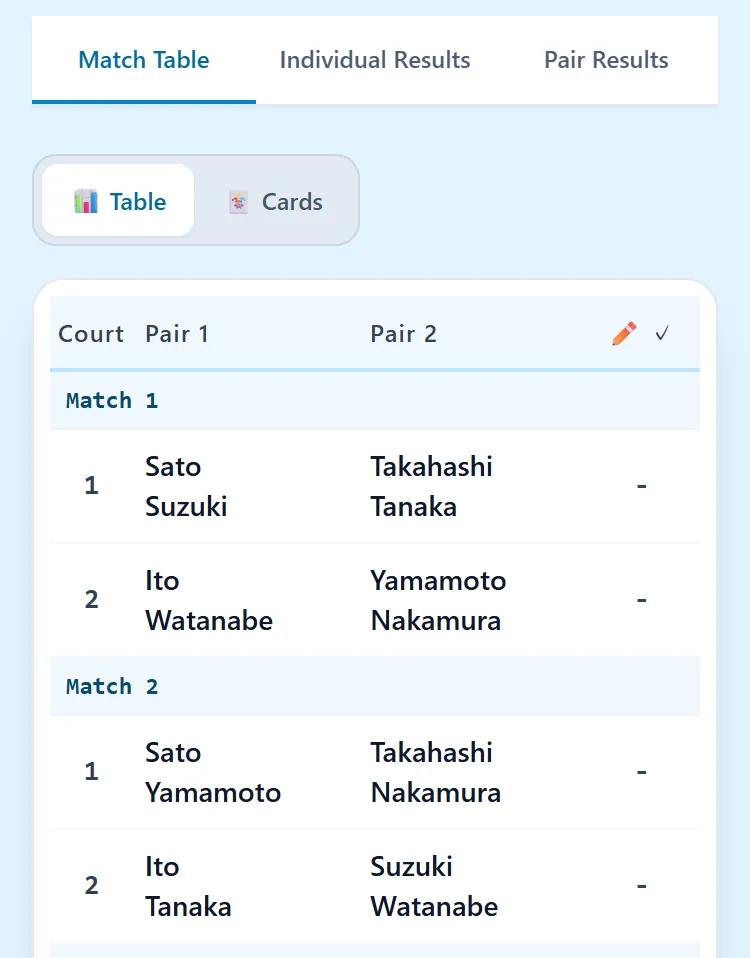
If the recipient logs in and opens it, the draw is also added to their "History." It is marked either "View Only" or "Editable."
Free, no sign-up, works in your browser
Read next
- Creating your first draw — From creating the draw to entering scores and checking results
- Changes during play (late, early departure, headcount) — What to do when the number of players changes on the day
- Running a group — Gather members and create the draw for each session